Components
Each component is ordinary Markdown. Every example below shows the Markdown source and then the live result the theme renders from that same source, in the light or dark scheme you are using. Copy a source block into your page to get the same result. On github.com each one falls back to the plain element.
Alerts
Available A GitHub alert becomes a callout with a localized title. Five types: note, tip, important, warning and caution. Screen readers announce each one as a note (role="note").
Source
> [!NOTE]
> Useful information that users should know, even when skimming.

> [!TIP]
> Helpful advice for doing things better or more easily.

> [!IMPORTANT]
> Key information users need to know to achieve their goal.

> [!WARNING]
> Urgent info that needs immediate user attention to avoid problems.

> [!CAUTION]
> Advises about risks or negative outcomes of certain actions.
Result
Note
Useful information that users should know, even when skimming.
Tip
Helpful advice for doing things better or more easily.
Important
Key information users need to know to achieve their goal.
Warning
Urgent info that needs immediate user attention to avoid problems.
Caution
Advises about risks or negative outcomes of certain actions.
Alerts with content
An alert can hold lists and code. Leave nothing after the marker on its line.
Source
> [!TIP]
> Before you publish:
>
> - run `modootoday-check`
> - preview with `bundle exec jekyll serve`
Result
Tip
Before you publish:
- run
modootoday-check- preview with
bundle exec jekyll serve
Cards
Available In a c: features section, each list item that starts with bold text becomes a card. The bold text is the card title; one separator after it ( — , : or the full-width :) is not shown, and colons later in the text stay. cols: 2, cols: 3 or cols: 4 sets the grid; narrow screens show one column, and cols: 4 shows two columns on medium screens.
Front matter
sections:
  - {c: features, name: cards, cols: 2, badge: bottom}
Source
- **Plain Markdown** — Pages read well on github.com too.
- **With a badge** — Cards can carry status. `status:available`

With `badge: bottom`, a status badge at the end of an item sits at the card's bottom edge, so badges line up across a row.
Result
- Plain Markdown Pages read well on github.com too.
- With a badge Cards can carry status. Available
With badge: bottom, a status badge at the end of an item sits at the card’s bottom edge, so badges line up across a row.
Cards in three columns
The same list with cols: 3. With reveal: true, the section fades in as it scrolls into view, only in browsers with scroll-driven animations and when the reader allows motion; elsewhere it is shown as is, with no script.
Front matter
sections:
  - {c: features, name: cards-3, cols: 3, reveal: true}
Source
- **Alerts** — Five alert types.
- **Tabs** — Accessible code tabs.
- **Search** — Client-side search.
Result
- Alerts Five alert types.
- Tabs Accessible code tabs.
- Search Client-side search.
Cards in four columns
The same idea with cols: 4 on wide screens.
- Alerts Five alert types.
- Tabs Accessible code tabs.
- Search Client-side search.
- Cards Grids of two to four columns.
Buttons
Available A paragraph that holds only links becomes buttons. The first link is the primary one. It works in the hero (before the first ##) and in a c: cta section.
Front matter
sections:
  - {c: cta, name: buttons}
Source
[Get started](../guides/install/) [Read the configuration](../guides/configuration/)
Result
Tabs
Available In a c: tabs section, each ### heading followed by a code block becomes a tab. Use at least two. Keyboard: arrow keys move between tabs, and Home and End jump to the first and last. Without JavaScript every block stays visible under its heading.
Front matter
sections:
  - {c: tabs, name: tabs}
Source
### macOS

```sh
brew install ruby
```

### Linux

```sh
sudo apt install ruby-full
```
Result
macOS
brew install ruby
Linux
sudo apt install ruby-full
Badges
Available Code spans with a known prefix become badges: status (available, partial, planned) and tag. The status symbol is hidden from screen readers, and the label is read instead.
Source
`status:available` `status:partial` `status:planned`

`tag:beta`
Result
Available Partial Planned
beta
Keyboard keys
Available A code span that starts with kbd and a colon becomes keyboard keys. Join keys with + and no spaces.
Source
Open search with `kbd:Ctrl+K`, or press `kbd:/`.
Result
Open search with Ctrl+K, or press /.
Accordion
Available In a c: accordion section, each ### heading becomes a button that shows or hides the content under it (aria-expanded). Enter or Space toggles it. Without JavaScript every answer stays visible.
Front matter
sections:
  - {c: accordion, name: accordion}
Source
### Does it work without JavaScript?

Yes. Every answer stays visible under its question.

### Can an answer hold code?

```sh
bundle exec jekyll serve
```
Result
Does it work without JavaScript?
Yes. Every answer stays visible under its question.
Can an answer hold code?
bundle exec jekyll serve
Steps
Available In a c: steps section, an ordered list becomes numbered steps.
Front matter
sections:
  - {c: steps, name: steps}
Source
1. Add the theme to `_config.yml`.
2. Write `index.md` in plain Markdown.
3. Run `bundle exec jekyll build`.
Result
- Add the theme to
_config.yml. - Write
index.mdin plain Markdown. - Run
bundle exec jekyll build.
Steps as headings
Use ### headings instead of a list when a step needs more than one line.
Front matter
sections:
  - {c: steps, name: steps-headings}
Source
### Install

Add `remote_theme` and the plugin.

### Publish

Push to `main` and turn on GitHub Pages.
Result
Install
Add remote_theme and the plugin.
Publish
Push to main and turn on GitHub Pages.
Timeline
Available In a c: timeline section, ### headings become points on a line.
Front matter
sections:
  - {c: timeline, name: timeline}
Source
### Install

Alerts, sections, cards and tabs.

### Check

Theme toggle, breadcrumb and table of contents.
Result
Install
Alerts, sections, cards and tabs.
Check
Theme toggle, breadcrumb and table of contents.
Timeline as a list
An ordered list works too.
Front matter
sections:
  - {c: timeline, name: timeline-list}
Source
1. Install: alerts, sections and cards.
2. Write: design tokens and navigation.
3. Check: theme toggle and steps.
Result
- Install: alerts, sections and cards.
- Write: design tokens and navigation.
- Check: theme toggle and steps.
Figure
Available A paragraph with only an image, followed by a paragraph with only emphasis, becomes a figure with a caption. Alt text is required.
Source
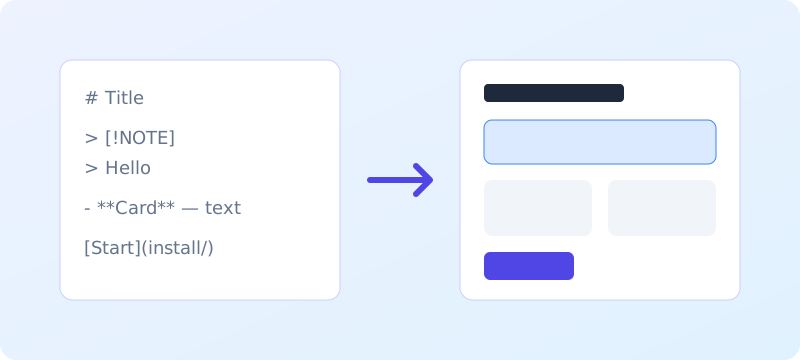
*Markdown on the left, the rendered page on the right.*
Result

Tables
Available GFM tables scroll sideways on small screens instead of overflowing the page.
Source
| Key | Default | Description |
|---|---|---|
| `color_scheme` | `auto` | follow the OS or force light or dark |
| `badges` | `true` | turn status code spans into badges |
Result
| Key | Default | Description |
|---|---|---|
color_scheme |
auto |
follow the OS or force light or dark |
badges |
true |
turn status code spans into badges |
Code blocks
Available Fenced code blocks are highlighted and get a copy button at the end of the first line. A long line scrolls, and the block can be reached with the keyboard.
Source
```ruby
Jekyll::Hooks.register :site, :post_write do |site|
  puts "Built #{site.pages.size} pages"
end
```
Result
Jekyll::Hooks.register :site, :post_write do |site|
  puts "Built #{site.pages.size} pages"
end
Code titles and diffs
Available A line holding only a code span that starts with file and a colon, right before a fenced block, becomes the block’s title bar. A diff block tints added and removed lines and keeps the plus and minus signs.
Source
`file:_config.yml`

```yaml
theme: jekyll-theme-modootoday
```

```diff
- remote_theme: old/theme
+ theme: jekyll-theme-modootoday
```
Result
File: _config.yml
theme: jekyll-theme-modootoday
- remote_theme: old/theme
+ theme: jekyll-theme-modootoday
Progress
Available A code span that starts with progress and a colon, followed by a whole number from 0 to 100, becomes a labelled progress bar with the value as text.
Source
Translation `progress:60`
Result
Translation 60%
Embeds
Available A paragraph holding only a code span that starts with embed and a colon, then an https URL and an optional title, becomes a lazy 16:9 frame that keeps its space while it loads.
Source
`embed:https://modootoday.github.io/jekyll-theme-modootoday/assets/images/sample.svg Sample page drawing`
Result
Loading and skeletons
Available Code spans that start with loading or skeleton and a colon become a spinner, a thin top bar or a placeholder (text, card, image, avatar, row). Each one has role="status" and a Loading label for screen readers, and the motion stops when the reader asks for reduced motion. Their styles are an optional sheet that only pages using them load.
Source
`loading:spinner`

`skeleton:avatar`
`skeleton:text`
`skeleton:card`
Result
Loading…
Loading… Loading… Loading…
File tree
Available In a c: filetree section, a nested list draws a folder tree. Items that hold a nested list are folders.
Front matter
sections:
  - {c: filetree, name: filetree}
Source
- docs
  - _config.yml
  - index.md
  - ko
    - index.md
Result
- docs
- _config.yml
- index.md
- ko
- index.md
Details
Available In a c: details section, each ### heading becomes a native disclosure. It opens and closes without JavaScript.
Front matter
sections:
  - {c: details, name: details}
Source
### What does it need?

Nothing but the browser.
Result
What does it need?
Nothing but the browser.
FAQ
Available A c: faq section works like details. For FAQPage structured data, add a schema: block (see Structured data).
Front matter
sections:
  - {c: faq, name: faq}
Source
### Is the theme free?

Yes, under the MIT license.

### Does it run on GitHub Pages?

Yes, with the github-pages gem.
Result
Is the theme free?
Yes, under the MIT license.
Does it run on GitHub Pages?
Yes, with the github-pages gem.
Parameter table
Available In a c: params section, a table lists options: name, type, default, description. A cell holding only Required shows a Required badge.
Front matter
sections:
  - {c: params, name: params}
Source
| Name | Type | Default | Description |
|---|---|---|---|
| `title` | string | `required` | Page title |
| `cols` | number | 2 | Card columns |
Result
| Name | Type | Default | Description |
|---|---|---|---|
title |
string | Required | Page title |
cols |
number | 2 | Card columns |
Link cards
Available In a c: linkcards section, list items that start with a link become cards. The whole card is the link target.
Front matter
sections:
  - {c: linkcards, name: linkcards}
Source
- [Install](../guides/install/) — Add the theme to a site.
- [Configuration](../guides/configuration/) — Every setting in one place.
Result
- Install Add the theme to a site.
- Configuration Every setting in one place.
Quote
Available In a c: quote section, a quote whose last line starts with an em dash gets that line as its attribution.
Front matter
sections:
  - {c: quote, name: quote}
Source
> The docs read well on github.com and on the site.
>
> — A theme user
Result
The docs read well on github.com and on the site.
Gallery
Available In a c: gallery section, a list of images becomes a thumbnail grid. Each thumbnail opens a full-size view without JavaScript. Every image needs alt text.
Front matter
sections:
  - {c: gallery, name: gallery}
Source
- 
- 
- 
- 
- 
- 
Result






Pricing
Available In a c: pricing section, each ### heading is a plan with a price, a feature list and a link. The recommended parameter marks one plan with a Recommended label.
Front matter
sections:
  - {c: pricing, name: pricing, recommended: 2}
Source
### Free

**$0**

- One site

[Start the Free plan](#)

### Team

**$12**

- Ten sites
- Support

[Choose Team](#)
Result
Subscribe
Available A c: subscribe section prints its text and an email form that posts to the address in modootoday.subscribe.action. Without that setting it shows only the text. Here the item also has bleed: true: any section item or hero: can take it to get a full-width background band in --mt-bleed-bg (default the muted surface) while its content keeps the reading column, and bleed: wide also widens the content up to the container width. With a sidebar or table of contents the band stays inside the main column.
Front matter
sections:
  - {c: subscribe, name: subscribe, bleed: true}
Source
Get one email when a release ships.
Result
Get one email when a release ships.
Split
Available A c: split section puts its text and a picture side by side from 48rem and stacks them below. The picture is the visual: include; side: start moves it to the start side and ratio: "5:7" gives it the wider column. Any other key on the item, such as label: here, reaches the include as include.section.label. The picture here is an illustration: a figure with class="mt-illustration", role="img" and an aria-label, plus an .mt-illustration-tag badge whose text is also in the label. decor: decor-demo adds the dots in the top corner as an aria-hidden ornament. The hero takes the same form: hero: {c: split, visual: <name>, side: start, ratio: "5:7"} puts the title, lead, check row and buttons in the text column and the include beside them. Available A c: split section puts its text and a picture side by side from 48rem and stacks them below. The picture is the visual: include; side: start moves it to the start side and ratio: "5:7" gives it the wider column. Any other key on the item, such as label: here, reaches the include as include.section.label. The picture here is an illustration: a figure with class="mt-illustration", role="img" and an aria-label, plus an .mt-illustration-tag badge whose text is also in the label. decor: decor-demo adds the dots in the top corner as an aria-hidden ornament. The hero takes the same form: hero: {c: split, visual: <name>, side: start, ratio: "5:7"} puts the title, lead, check row and buttons in the text column and the include beside them.
Front matter
sections:
  - {c: split, name: split, visual: split-demo, decor: decor-demo, tag: Illustration, side: start, ratio: 5:7, label: A screen with a heading, two lines of text and a button}
Source
`visual: code` on a `c: split` section or a split hero needs no include: the first fenced code block in that section, with its `file:` title if it has one, moves into the visual column and keeps the code styles and the copy button. `chrome: terminal` (its own small sheet, linked only where used) adds a border and a decorative bar that screen readers skip. Anywhere else, `visual: code` still means `_includes/sections/code.html`.

Text on one side, the picture on the other.
Result
visual: code on a c: split section or a split hero needs no include: the first fenced code block in that section, with its file: title if it has one, moves into the visual column and keeps the code styles and the copy button. chrome: terminal (its own small sheet, linked only where used) adds a border and a decorative bar that screen readers skip. Anywhere else, visual: code still means _includes/sections/code.html.
Text on one side, the picture on the other.
Lists
Available With modootoday.lists in _config.yml, plain sections and pages get two list styles. link_chips: true turns a list whose every item is one link into a row of chips; titled_items: true gives an item that starts with a bold title and a colon its own title and separator. hero: {checks: true} turns the first list in the hero into a row of check marks, as above. Lists in component sections keep their own style.
Items with a title:
- Chips: a list of links only
- Titled items: a bold title, a colon, then the text
Navigation
Available The header menu comes from _data/nav/main.yml. An entry with items: becomes a dropdown group on wide screens, and narrow screens get a menu button. Esc closes an open menu. The result is the header of this page.
- {title: Install, url: /install/}
- {title: Components, url: /components/}
- title: More
  items:
    - {title: Public API, url: /api/}
Language switcher
Available With languages: and language_switcher: header, the header gets a globe button that opens a list of languages. It stays the same width however many languages you add. Each language is named in its own language, and the current one has aria-current. Esc closes the list. The result is the globe in the header of this page.
modootoday:
  languages: [en, ko, ja]
  language_switcher: header
Theme toggle
Available The header button switches between light and dark and remembers the choice. Use color_scheme to fix one scheme. The result is the button in the header of this page.
modootoday:
  color_scheme: auto   # auto | light | dark
Icons and logo
Available The theme draws its icons (globe, sun and moon, search, alert types, copy, edit, previous and next, external link, breadcrumb arrows) as inline SVG in currentColor, so they follow the light or dark scheme and need no extra requests. Icons are hidden from screen readers; each icon-only button has its own name. Arrows that point a direction flip in right-to-left pages. Set logo to put the modootoday mark (or your own image) before the site title, and favicon to add the matching browser icons. The result is the header and footer of this page.
modootoday:
  logo: brand        # brand | /assets/img/logo.svg
  favicon: brand     # brand | /favicon.ico
Search
Available Client-side search over a search.json file, in the header (role="search"). Press Ctrl+K or / to focus it. Add a search.json file at the site root to turn it on: copy the one this site uses. The result is the search box in the header of this page.
Breadcrumb and table of contents
Available Doc pages get a breadcrumb from the URL, and a table of contents from the ## and ### headings: at the side on wide screens and in a folding box on narrow ones. Both are added by the layout, so there is no source to write. Leave out breadcrumb or toc from components to turn them off. The result is at the top and side of this page.
modootoday:
  components: [callout, badge, hero, cta, card, tabs, code-copy, nav, pagination, theme-toggle]
Previous and next
Available Pages listed in the nav get previous and next links in nav order. Set pagination: false in front matter to hide them. The result is at the bottom of this page.
---
title: Components
pagination: false
---
Posts and archives
Available layout: post shows the date, author and tags (p.mt-post-meta).
---
layout: post
title: Hello
date: 2026-10-30
author: Won
tags: [release]
---
Status legend
| Badge | Meaning |
|---|---|
| Available | shipped and stable |
| Partial | works with known limits |
| Planned | on the roadmap |